
HEIC to JPG converter (online, free)
MiniPic’s HEIC to JPG converter is an online tool that needs no sign-up: upload the HEIC photos from your iPhone, and they’re automatically converted to JPEG and compressed, at 20 photos per batch and up to 5 MB per photo.
Images are used only for the current compression: encrypted in transit, served over private links, never leaked, and never used for training or any other purpose. · Privacy Policy
Three steps
Convert HEIC to JPG in three steps.
Drop in HEIC photos
Drag the HEIC photos exported from your iPhone into the area above: 20 per batch with no sign-up, up to 5 MB each.
Converted and compressed
HEIC is converted to JPG automatically and compressed in Smart mode; you can also switch to High fidelity.
Download JPG
Drag the slider to check the result, then download one by one or all at once as a ZIP.
What is HEIC
What HEIC is, and why you’d convert it to JPG.
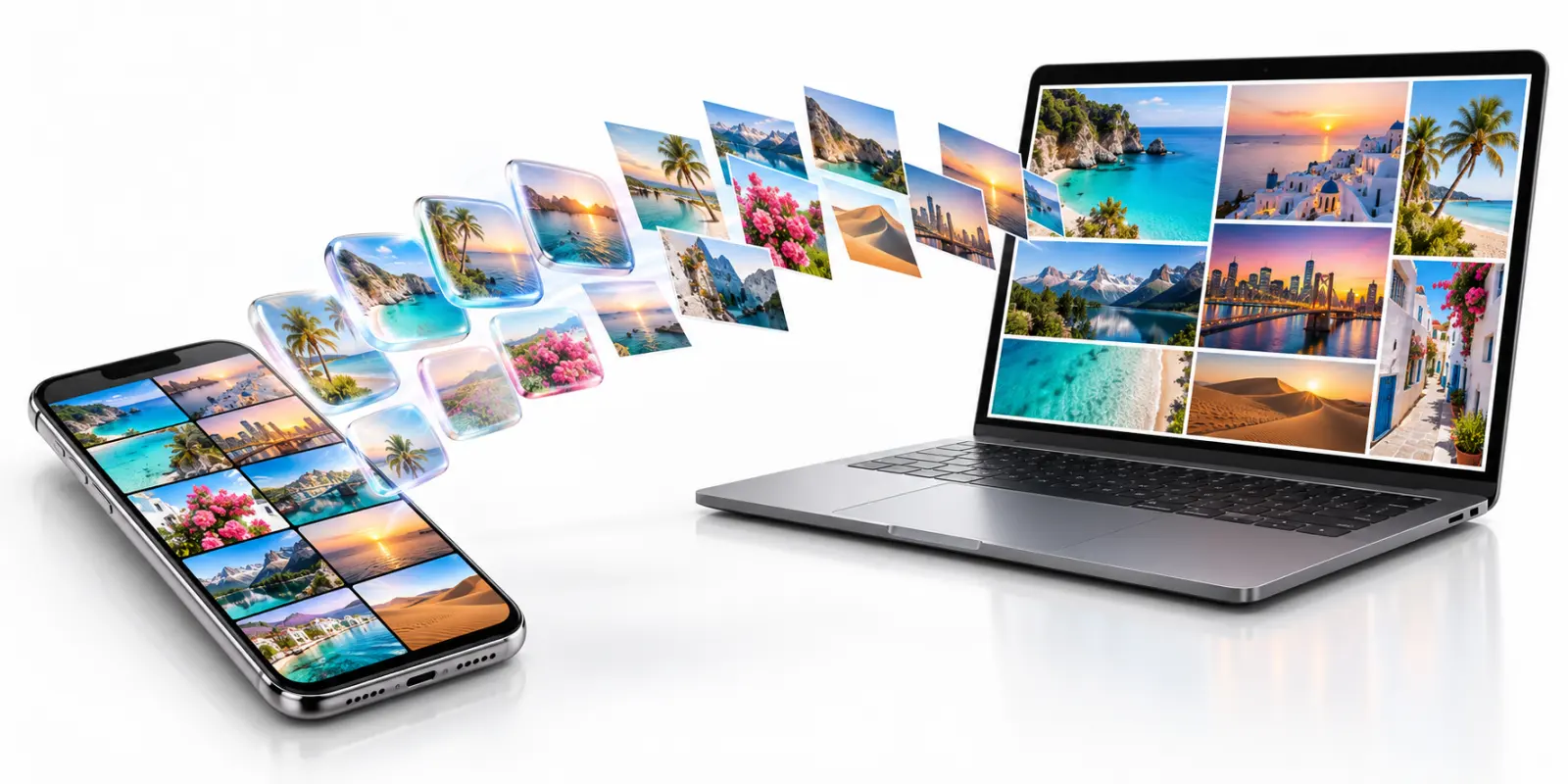
HEIC is the iPhone’s default photo format, with smaller files at the same quality.
But plenty of desktop software, website upload forms and office systems still can’t read HEIC, and the people you send it to may not be able to open it. Convert to JPG, and it works almost anywhere.
Quality
Does converting lose quality?
JPEG is a lossy format, so converting re-encodes the image. By default, MiniPic uses Smart mode to balance size and quality, and you can drag the slider to compare afterward; if quality matters more to you, switch to High fidelity.
Smart
The default, balancing size and quality.
High fidelity
Puts detail first, for photos you’ll print or enlarge.
20 photos
Per batch, no sign-up
50 photos
Per batch, signed up
300 photos
Per batch with Pro
Up to 5 MB per photo without sign-up, and up to 80 MB with Pro. For more or larger photos, use the desktop app to process them in batches on your computer, with no plan-based limit on file size.
For Mac users
On Mac, the desktop app can compress HEIC and keep it HEIC.
Don’t want to change formats? The MiniPic Mac app can keep HEIC as HEIC and just compress it; it can also output JPEG, PNG or WebP.
FAQ
Is HEIC to JPG conversion free?
Yes. Without signing up, you can convert 100 photos a day, up to 5 MB each and 20 per batch; sign up for 50 per batch and 1,000 a month.
Does converting HEIC to JPG lose quality?
JPEG is a lossy format. By default, MiniPic uses Smart mode to balance size and quality; you can check the result with the before/after slider, or switch to High fidelity.
Can I batch-convert HEIC to JPG?
Yes. 20 per batch (50 once you sign up, 300 with Pro), and you can download everything as a ZIP when it’s done.
Do I need to download any software?
No, it works right in your browser. Mac users can also use the MiniPic desktop app, which can compress HEIC while keeping it in HEIC format.
Are my uploaded photos stored?
Photos are used only for the current conversion: encrypted in transit, accessed via private links, deleted automatically within 24 hours, and never used for training or anything else.