
Scrolling screenshot
How to take a scrolling screenshot on your computer
MiniPic’s scrolling screenshot is a free desktop feature: select an area, then let it scroll automatically or scroll it yourself, and everything is stitched into one long image. It works on both Mac and Windows; on Mac, auto-scroll requires the Accessibility permission.
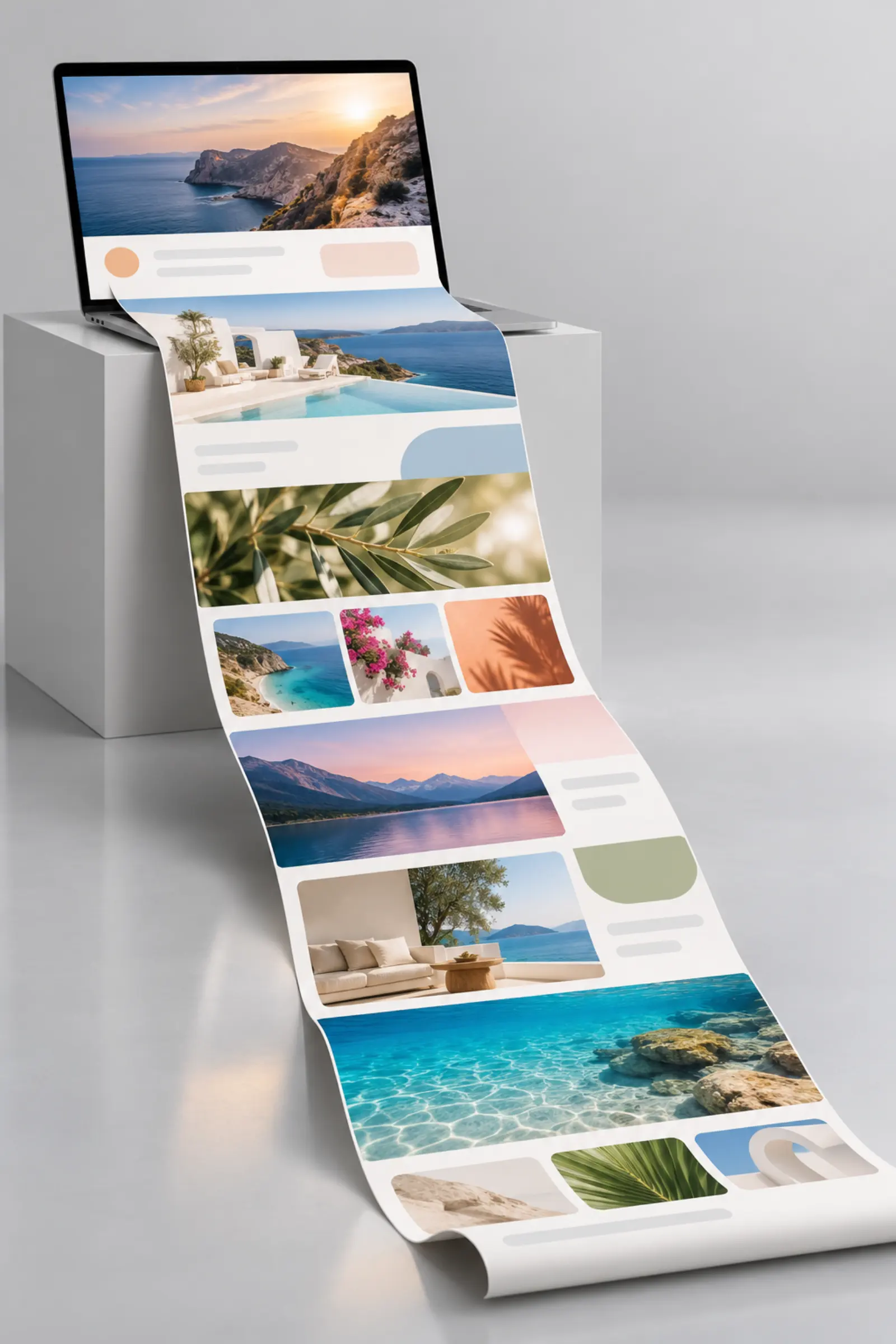
Three steps
Take a long screenshot in three steps with MiniPic’s scrolling capture.
Start scrolling capture
Open a screenshot (⌥⇧A on Mac, Alt+Shift+A on Windows), enter scrolling capture from the screenshot toolbar, and select the area to capture.
Scroll to stitch
Scroll down inside the selection to start stitching, or click “Auto-Scroll” to scroll steadily to the end; a live preview shows as it stitches.
Save or pin
When you’re done, save it (compressed by default), pin it on your screen, or just copy it.
Auto or manual
Let it scroll, or scroll it yourself.
Scroll your mouse inside the selection to start stitching; if you’d rather not, click “Auto-Scroll”.
Live preview
Watch the stitching progress as you scroll.
Automatic alignment
Overlaps line up automatically, with special handling for blank rows, fixed sidebars and other spots that tend to misalign.
Two-step Esc
Press Esc once to stop auto-scroll and again to exit, so a quick finger won’t cost you the capture.
Mac & Windows
Long screenshots on both Mac and Windows.
Long screenshots on Mac: turn on the “Accessibility” permission
Auto-scroll needs MiniPic to send scroll actions to the current window, and macOS requires permission for that kind of action.
The first time you use it, the app guides you to System Settings › Privacy & Security › Accessibility to allow MiniPic.
Long screenshots on Windows
Press Alt+Shift+A to open a screenshot, enter scrolling capture from the toolbar, select an area and scroll to stitch.
Works on Windows 10 / 11 64-bit.
Other ways
Another way to capture a long web page: your browser’s full-page screenshot.
Chrome, Edge, Firefox and other browsers offer full-page screenshots, built in or in their developer tools, which work well for capturing an entire web page.
Chat histories, long lists in desktop apps and long documents in readers are beyond the browser’s reach, and that’s where scrolling capture fits better.
Cut short?
Long screenshot cut short? Try these.
Select inside the scrolling area
Place the selection over the content that actually scrolls; if the selection is too small, MiniPic will ask you to reselect.
Avoid fixed bars
If the page has a fixed top bar or sidebar, keep the selection clear of it for steadier stitching.
Switch to auto-scroll
If your manual scrolling is uneven, use “Auto-Scroll” to scroll steadily to the end.
File size
Long image too big? It’s compressed on save by default.
Scrolling screenshots are compressed by MiniPic’s in-house engine by default when you save them. To go smaller, drag the long image into the MiniPic workspace and switch to Maximum.
Price
Free. No sign-in.
Scrolling screenshots are free, just like screenshots, annotation and pinning.
¥0
System requirements
Works on Mac and Windows.
Mac
macOS 13 or later, with installers for both Apple silicon and Intel. Auto-scroll requires the “Accessibility” permission, and the app guides you through granting it.
Windows
Windows 10 / 11 64-bit.
FAQ
How do I take a long screenshot on my computer?
Open MiniPic Screenshot, choose scrolling capture and select an area. Then let the page scroll automatically or scroll it yourself, and MiniPic stitches everything you scroll past into one long image. It works on both Mac and Windows and is free.
Can I take a scrolling screenshot on a Mac?
Yes. The MiniPic Mac app supports scrolling screenshots. To use auto-scroll, allow MiniPic in System Settings › Privacy & Security › Accessibility.
Why does auto-scroll need the Accessibility permission?
Auto-scroll needs MiniPic to send scroll actions to the current window, and macOS requires Accessibility permission for that kind of action.
Are scrolling screenshots free?
Yes, with no sign-in required.
What if the long screenshot file is too big?
Scrolling screenshots are compressed by MiniPic’s in-house engine by default when you save them. If you need it smaller, drag the long image into the MiniPic workspace and switch to Maximum.
Related features
Screenshot
Region, window or full screen, 7 annotation tools, compressed on save by default.
OCR
Turn the text in a screenshot into copyable text in one click.

Screen recorder
Record to MP4, or straight to a smaller GIF.
Image viewer
Double-click to view, and compress in one click while you’re there.