

Screen recorder
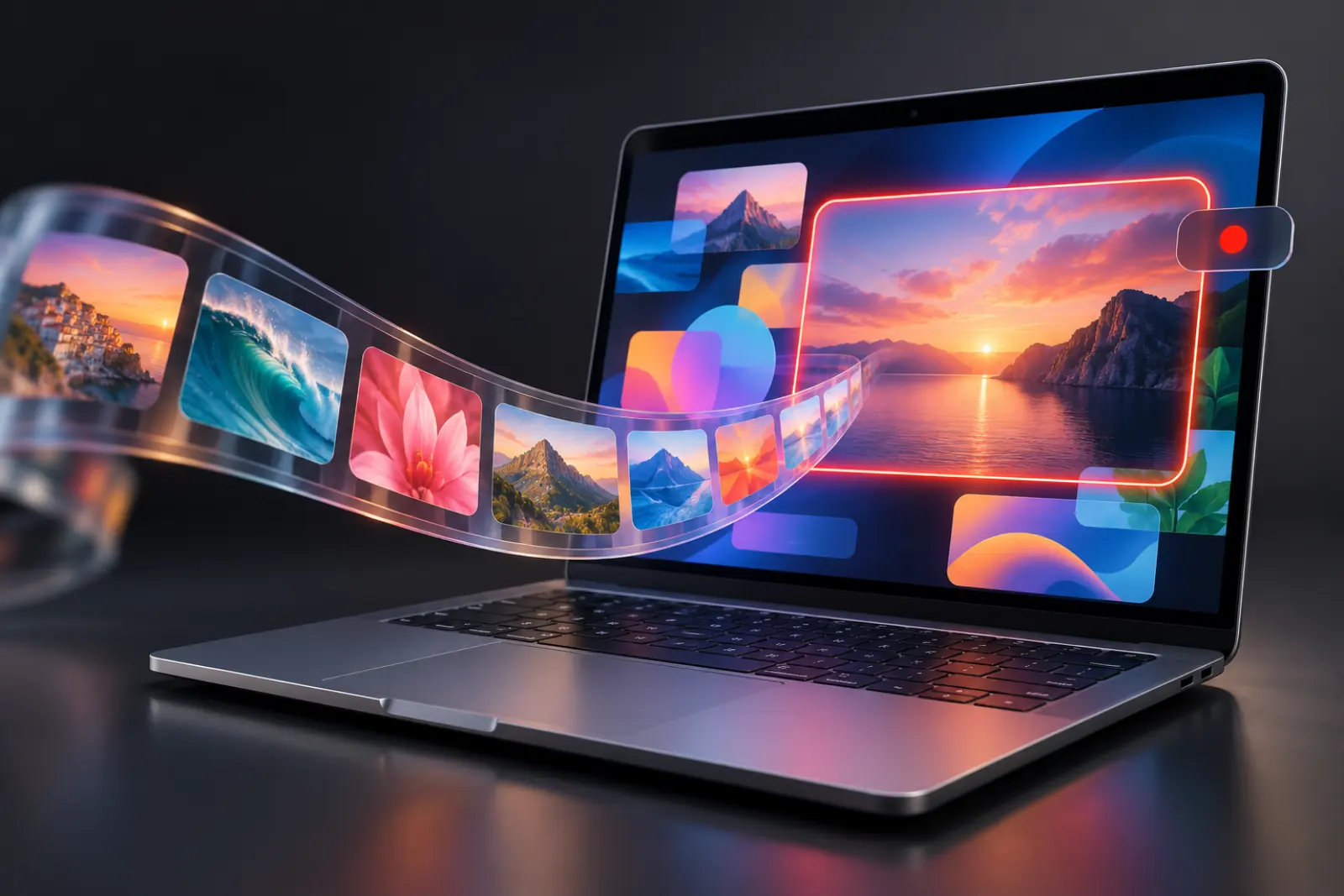
MiniPic Screen Recorder: record your screen or a GIF
MiniPic Screen Recorder captures a region, a window or the full screen and saves it as an MP4 video or as an animated GIF compressed by MiniPic’s in-house engine. On the free plan, recordings carry a MiniPic badge; with Pro, there’s no watermark.
Recording area
Region, window or full screen. Record exactly what you need.
Show the mouse cursor if you like, or set a 3- or 5-second countdown before recording starts.
3 s / 5 s
A countdown before recording, so you have time to switch to the window you’re demoing.
Show cursor
In walkthroughs, every click is easy to follow.
Esc to discard
Botched a take? Press Esc to discard the recording.
MP4
Record MP4, with system audio and your microphone.
Standard video recording at 24, 30 or 60 fps, at original resolution, 1080p or 720p.
60 fps
Choose 24, 30 or 60 fps
1080p
Original resolution, 1080p or 720p
GIF
Record GIF, compressed by our in-house engine for smaller files.
GIFs are compressed by MiniPic’s in-house engine by default, at 15, 30 or 45 fps and 1080p, 720p or 480p. Great for walkthroughs, bug repros and tutorial animations that drop easily into group chats and docs.
45 fps
Choose 15, 30 or 45 fps
480p
Choose 1080p, 720p or 480p
Free & Pro
Record for free. Pro removes the badge.
On the free plan, recordings carry a MiniPic badge in the bottom-right corner; Pro recordings have no watermark. Quality, formats and length rules are the same on both.
| Free | Pro | |
|---|---|---|
| Record MP4 (with system audio and microphone) | Supported | Supported |
| Record GIF (compressed by our in-house engine) | Supported | Supported |
| Quality, format and length rules | Same | Same |
| Badge on recordings | MiniPic badge in the bottom-right corner | No watermark |
System requirements
Works on Mac and Windows.
Mac
macOS 13 or later, with installers for both Apple silicon and Intel. Requires the “Screen Recording” permission, plus the “Microphone” permission to record your mic; recordings are saved to your Downloads folder automatically.
Windows
Windows 10 / 11 64-bit.
FAQ
Is MiniPic Screen Recorder free? Is there a watermark?
It’s free to use, for both MP4 and GIF. On the free plan, recordings carry a MiniPic badge in the bottom-right corner; Pro recordings have no watermark. Recording quality, formats and length rules are the same on Free and Pro.
Can I record straight to GIF?
Yes. GIF recording supports 15, 30 or 45 fps and is compressed by MiniPic’s in-house engine by default.
Can it record my computer’s audio?
When recording MP4, you can capture system audio and your microphone.
How do I remove the recording watermark?
Upgrade to Pro (¥15 monthly / ¥99 yearly, for both web and desktop), and recordings you start from then on won’t carry the badge.
Related features
Screenshot
Region, window or full screen, 7 annotation tools, compressed on save by default.
Scrolling screenshot
Stitches as you scroll to capture a whole page in one go.
Image viewer
Double-click to view, and compress in one click while you’re there.
Batch compression
Drop in a whole batch at once, or right-click in Finder or File Explorer to compress.