
OCR
Recognize text in screenshots (OCR)
MiniPic OCR is a free desktop feature: take a screenshot or open an image in the viewer to recognize its text and copy it. Recognition happens on your computer, so images aren’t uploaded, and it works on both Mac and Windows.
Text from screenshots
Take a screenshot. Recognize its text right away.
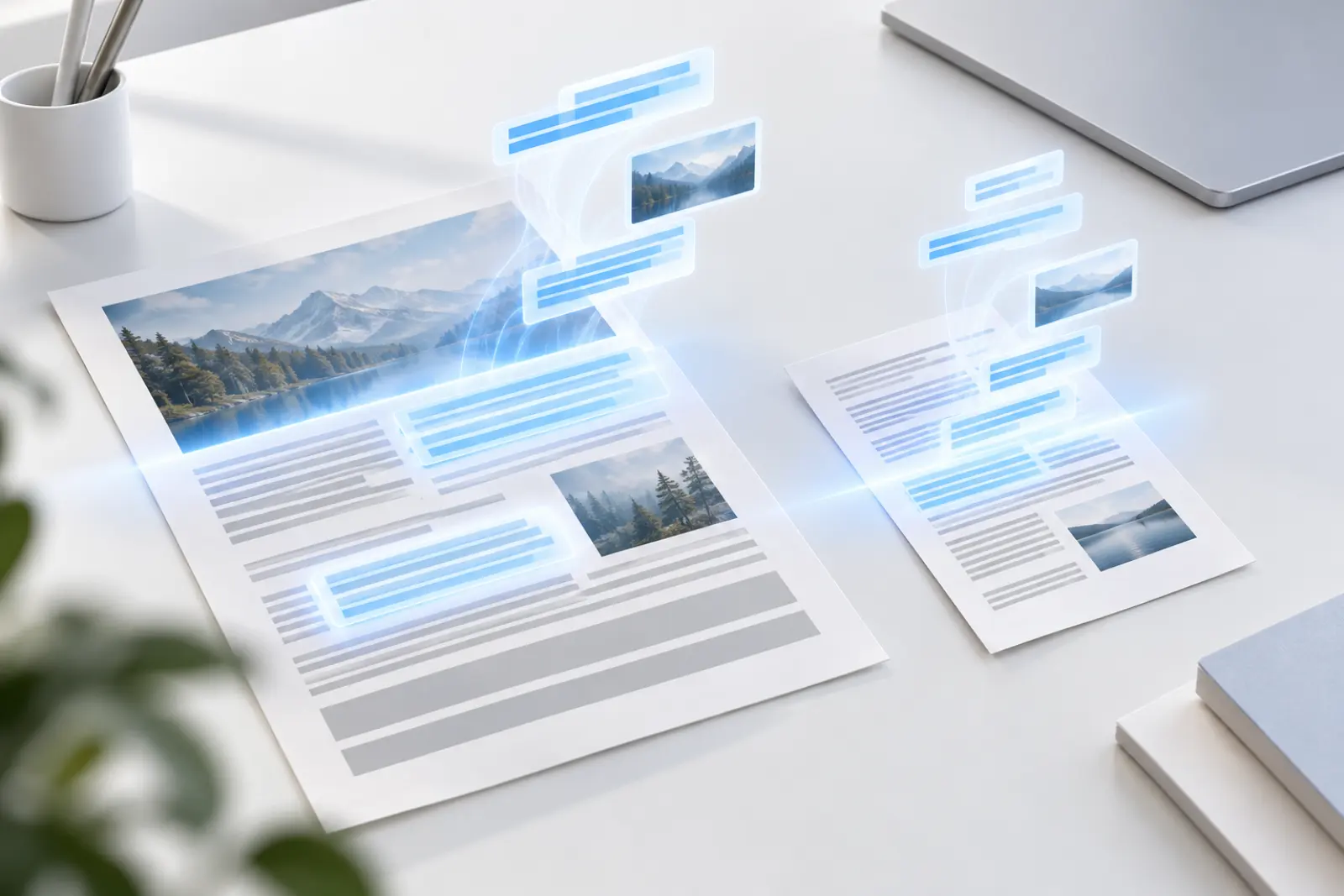
Recognized text is overlaid right where it appears in the screenshot: select any part to copy it, or copy everything in one click.
Take a screenshot
Press ⌥⇧A on Mac or Alt+Shift+A on Windows and select the area with text.
Click “Recognize Text”
Click “Recognize Text” on the screenshot toolbar; the text is recognized on your computer and shown in place.
Copy the text
Copy part of the text, or copy everything in one click, and paste it anywhere.
Image viewer
Recognize the text in images from the viewer.
Screenshots you receive, documents you photograph, posters you’ve saved: open them in the MiniPic viewer to recognize and copy their text.

Privacy
Recognized on your computer. Images aren’t uploaded.
Text recognition happens on your computer. Contracts, chat histories, internal documents: recognize them with peace of mind.
0 images
uploaded during recognition
Multilingual
Many languages, detected automatically.
On Mac, MiniPic uses the system’s text recognition and detects the language automatically; supported languages depend on macOS.
On Windows, it uses the system OCR; recognizable languages depend on the languages installed on your system.
Translate after recognizing
Can’t read it? Translate it next.
For foreign-language screens, use screenshot translation, and the translation is written right back where the original text was.

Price
Free. No sign-in.
OCR is free on both Mac and Windows.
¥0
System requirements
Works on Mac and Windows.
Mac
macOS 13 or later, with installers for both Apple silicon and Intel. Uses the system’s text recognition.
Windows
Windows 10 / 11 64-bit. Uses the system OCR; recognizable languages depend on the languages installed on your system.
FAQ
Is image to text free?
Yes, with no sign-in required, on both Mac and Windows.
Are images uploaded during recognition?
No. Text recognition happens on your computer, and images aren’t uploaded.
Which languages are supported?
Languages are detected automatically. On Mac, MiniPic uses the system’s text recognition, so supported languages depend on macOS; on Windows, it uses the system OCR, so recognizable languages depend on the languages installed on your system.
Can I copy the results directly?
Yes. You can copy the recognized text and paste it anywhere.
Related features

Screenshot translation
Capture a foreign-language screen, and the translation lands right where the text was.

Screenshot
Region, window or full screen, 7 annotation tools, compressed on save by default.

Image viewer
Double-click to view, and compress in one click while you’re there.

Color picker
Press a shortcut, click anywhere, and copy that color.