
Compress to a target size
Compress images to a specific size
MiniPic’s size-first precision control is a Pro feature of the desktop app. Choose ≤100KB, 200KB, 500KB, 1MB or set your own target size, and after compression you’ll see a quality grade for the result. The web app doesn’t support this yet.
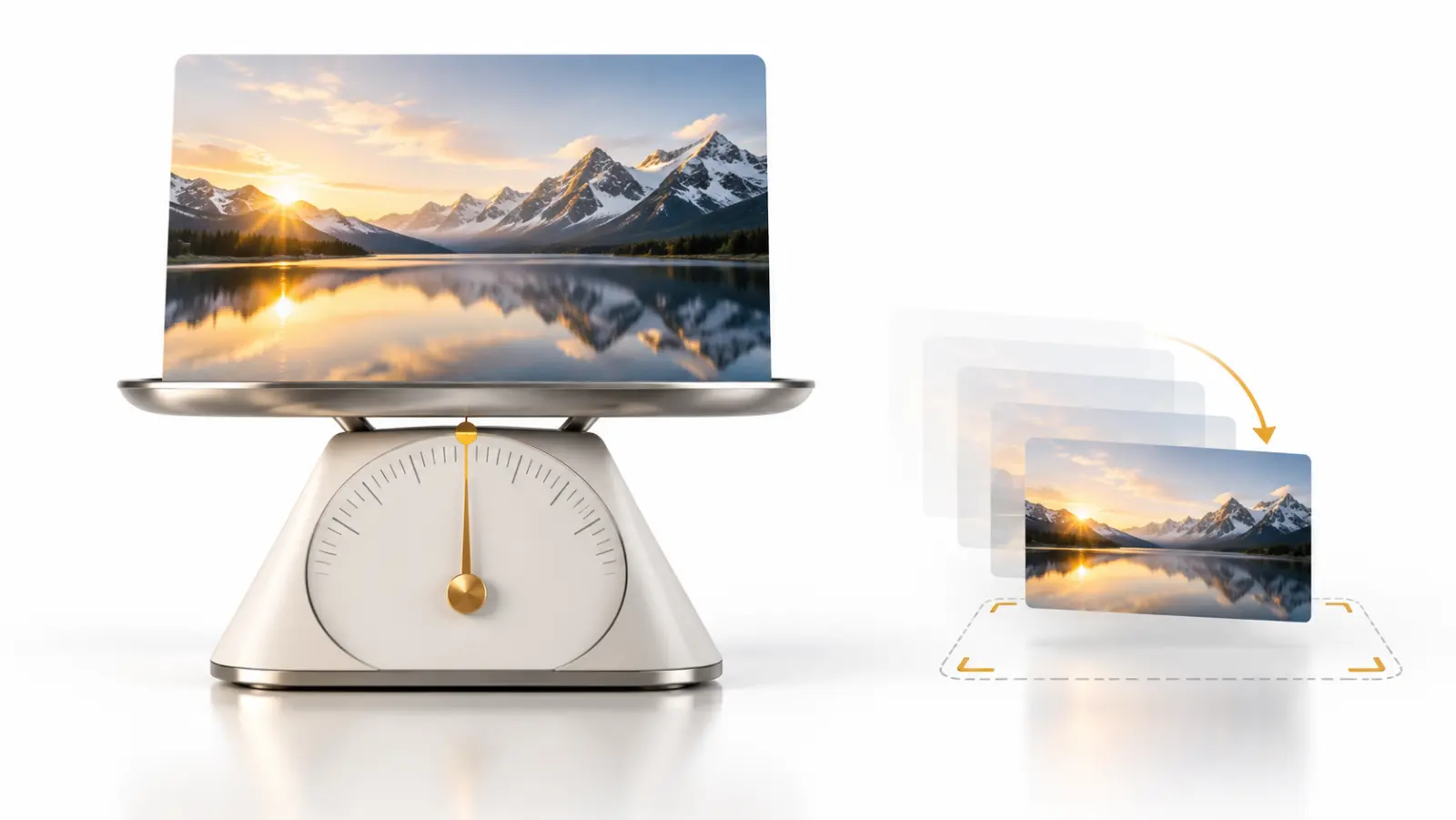
Target size
Choose a target size: 100KB, 200KB, 500KB, 1MB or your own.
- 100KB
- 200KB
- 500KB
- 1MB
- Custom
Choose the “Custom” mode
In the MiniPic desktop app’s quality settings, choose “Custom” and switch to Size first.
Set a target size
Choose ≤100KB, 200KB, 500KB or 1MB, or enter your own target size.
Compress and check the grade
Compress to the target size, then check the quality grade to confirm the result.
Quality first
Quality-first mode: a slider and exact values.
Don’t care about the exact size, just a certain quality? Switch to Quality first and drag the slider, or type in a value.
Quality grade
Check the quality grade after compressing.
A quality grade appears after compression, so you can tell at a glance how hard the image was squeezed.
Common uses
Application photos and platform uploads, under the limit on the first try.
Application and ID photos
Exam registrations and government services often cap photo file sizes, for example under 100KB or 200KB.
Platform uploads
E-commerce and content platforms cap the file size of each image; just set your target to that cap.
Email and documents
Keep each image’s size in check, so attachments go through and documents stay lean.
On the web
Can I do this on the web?
The web app doesn’t support target sizes yet; it offers three modes, Smart, High fidelity and Maximum, all free. To go smaller, switch to Maximum.
Pro
Target sizes are a desktop Pro feature.
Free users can use the three modes: Smart, High fidelity and Maximum; setting a target size is part of Pro’s Custom precision control.
| Free | Pro | |
|---|---|---|
| Smart / High fidelity / Maximum | Supported | Supported |
| Quality first (slider and exact values) | Not available | Supported |
| Size first (target size) | Not available | Supported |
System requirements
Works on Mac and Windows.
Mac
macOS 13 or later, with installers for both Apple silicon and Intel.
Windows
Windows 10 / 11 64-bit.
FAQ
How do I compress an image to under 100KB?
In the MiniPic desktop app (Pro), choose Size first in the “Custom” mode and set it to ≤100KB to compress to that target size.
Can I use it for free?
Setting a target size is part of Custom precision control in the desktop app’s Pro plan; free users can use the three modes: Smart, High fidelity and Maximum.
Can the web app compress to a specific size?
Not yet.
Does it work on Windows?
Yes. Both the Mac and Windows desktop apps have Custom precision control.
Related features
Batch compression
Drop in a whole batch at once, or right-click in Finder or File Explorer to compress.
Auto compression
Pick a folder, and new images saved there are compressed automatically.
Compress online
Drop images into your browser and they’re compressed. All three quality modes are free.
HEIC to JPG
Drop in iPhone photos and they’re converted to JPG and compressed.