
Screenshot
Free screenshot tool: MiniPic Screenshot
MiniPic Screenshot is the free screenshot tool built into the desktop app. It captures a region, a window or the full screen, with an optional delay, and comes with 7 annotation tools, pinning and scrolling screenshots. Screenshots are compressed by default when you save them.
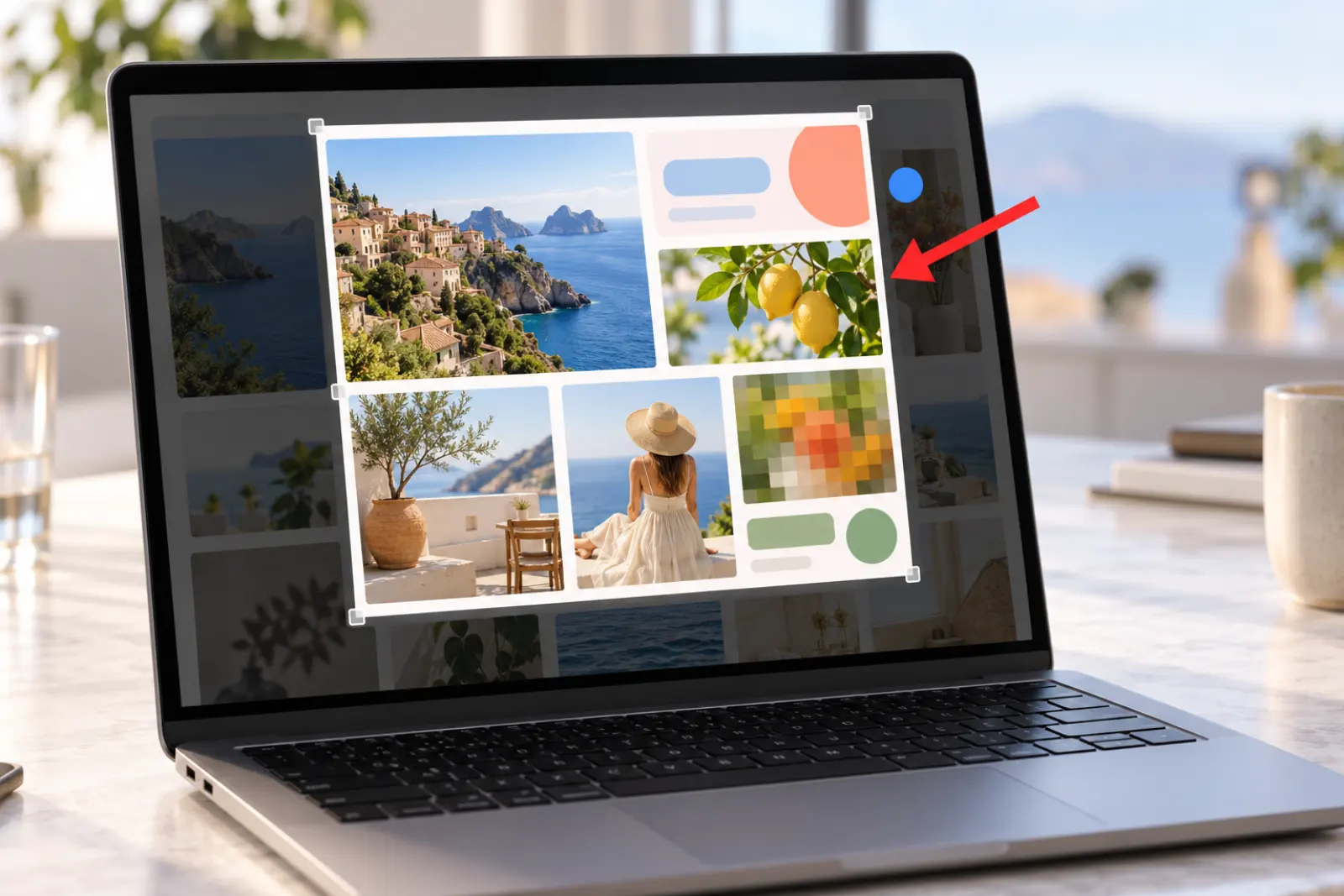
Capture modes
Four ways to capture: region, window, full screen, and a 3-second delay.
Switch modes anytime while you frame the shot. Delayed capture waits 3 seconds, so you can grab open menus and tooltips that only appear on hover.
Region
Drag out a selection of any size.
Window
Capture an entire window at once.
Full screen
Capture the whole screen in one go.
3 sec
Delayed capture: open the menu first, then capture.
Annotation
7 annotation tools. Redact in one pass.
Mosaic redacts as you brush, or hold Shift and drag to select a box; numbers can carry notes; undo and redo anytime.
- Rectangle
- Ellipse
- Arrow
- Pen
- Text
- Number
- Mosaic
Pin
Pin a screenshot to your screen, always on top.
Checking a design while you code, or reference material while you fill in a form? Just pin one alongside.
1:1 in place
Pinned back where you captured it, at its original size.
Always on top
Drag to move, drag a corner to resize; on Mac, it can even follow you across Spaces.
Pin several at once
Nothing in the way: the close button appears only when you hover.
Compressed on save
Save a screenshot, and it’s already compressed.
The “Compress on save” switch in the save panel is on by default, so screenshots go through MiniPic’s in-house engine before they’re saved, as PNG or JPEG; switch it off whenever you don’t need it.
What’s copied to the clipboard is the original, so it pastes exactly as captured.
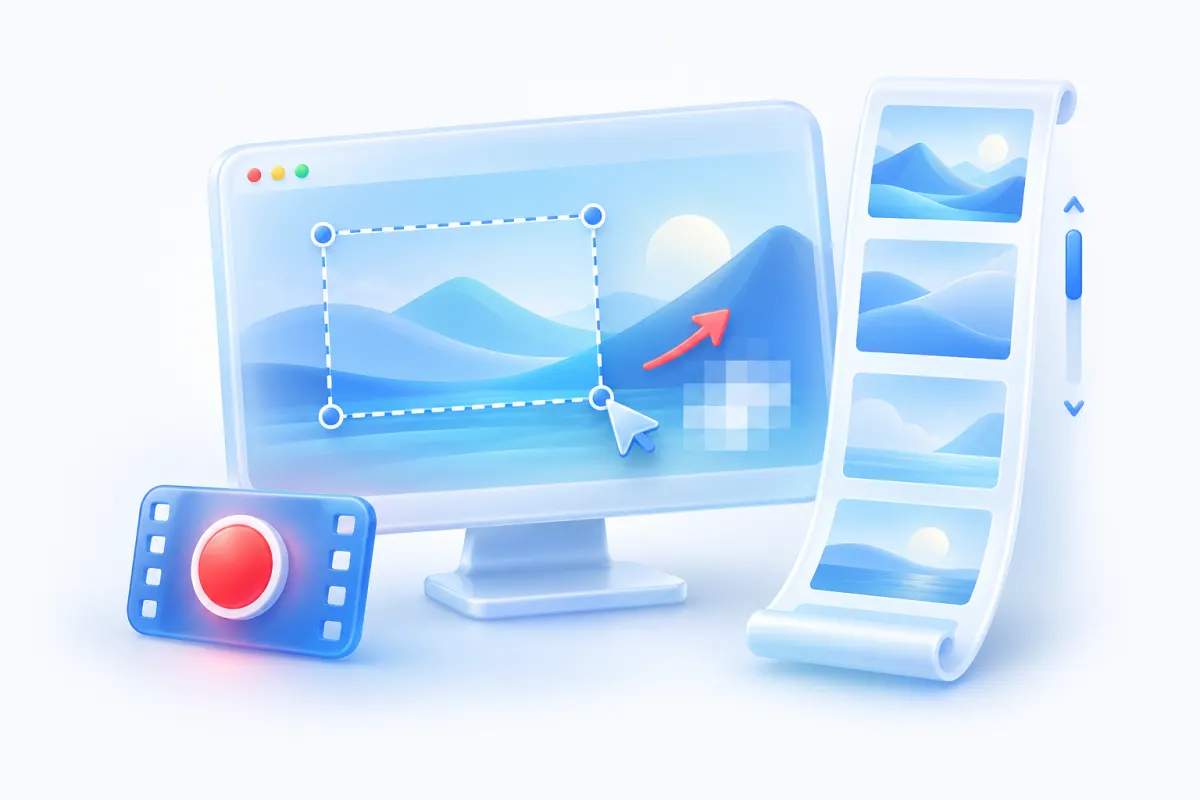
After the capture
Recognize text, translate or go long, all from one toolbar.
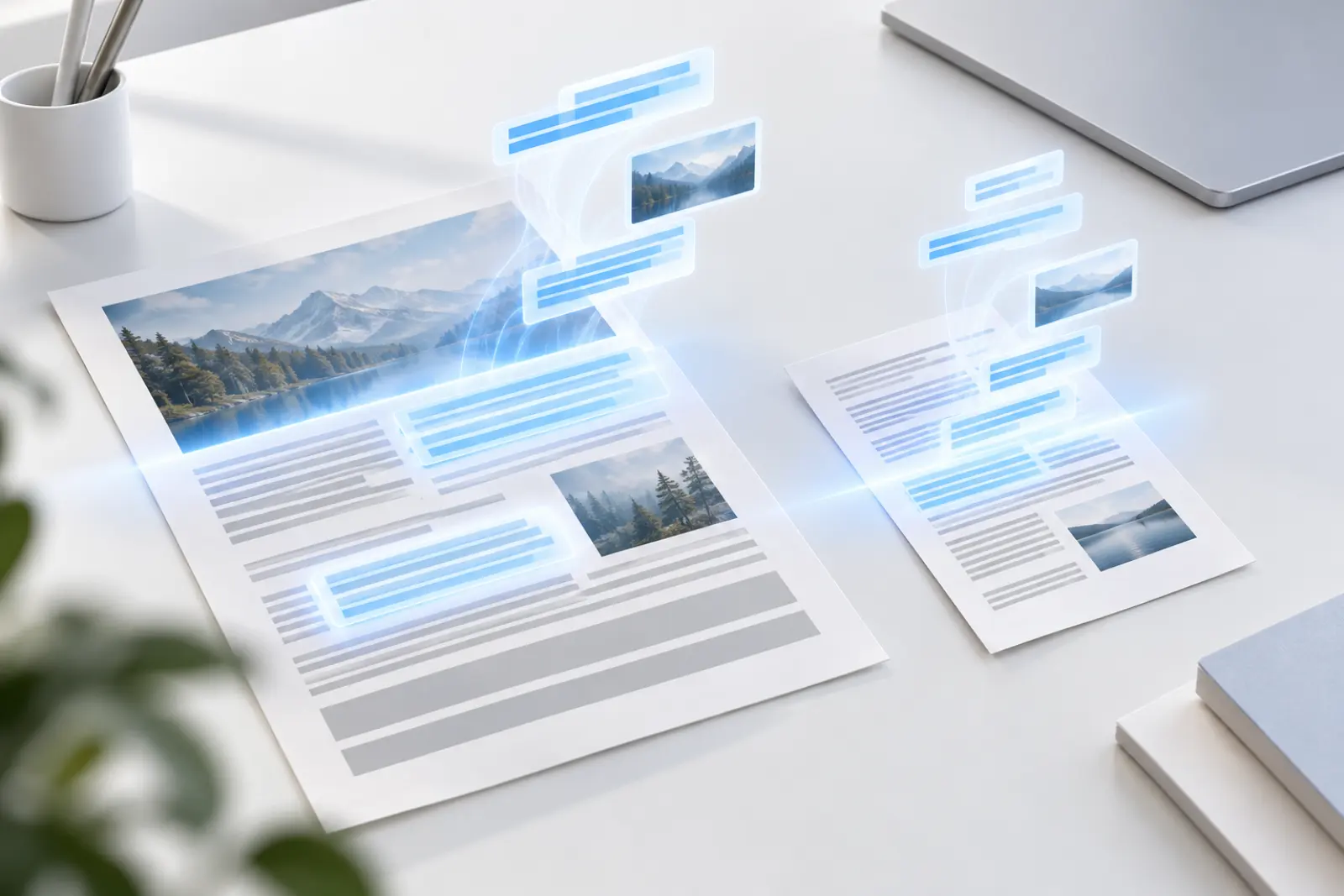
After capturing, copy, save or pin it right away, or recognize the text, translate it, or switch to a scrolling screenshot.
Scrolling screenshot
Capture whole web pages and chat histories in one go.
Learn about scrolling screenshots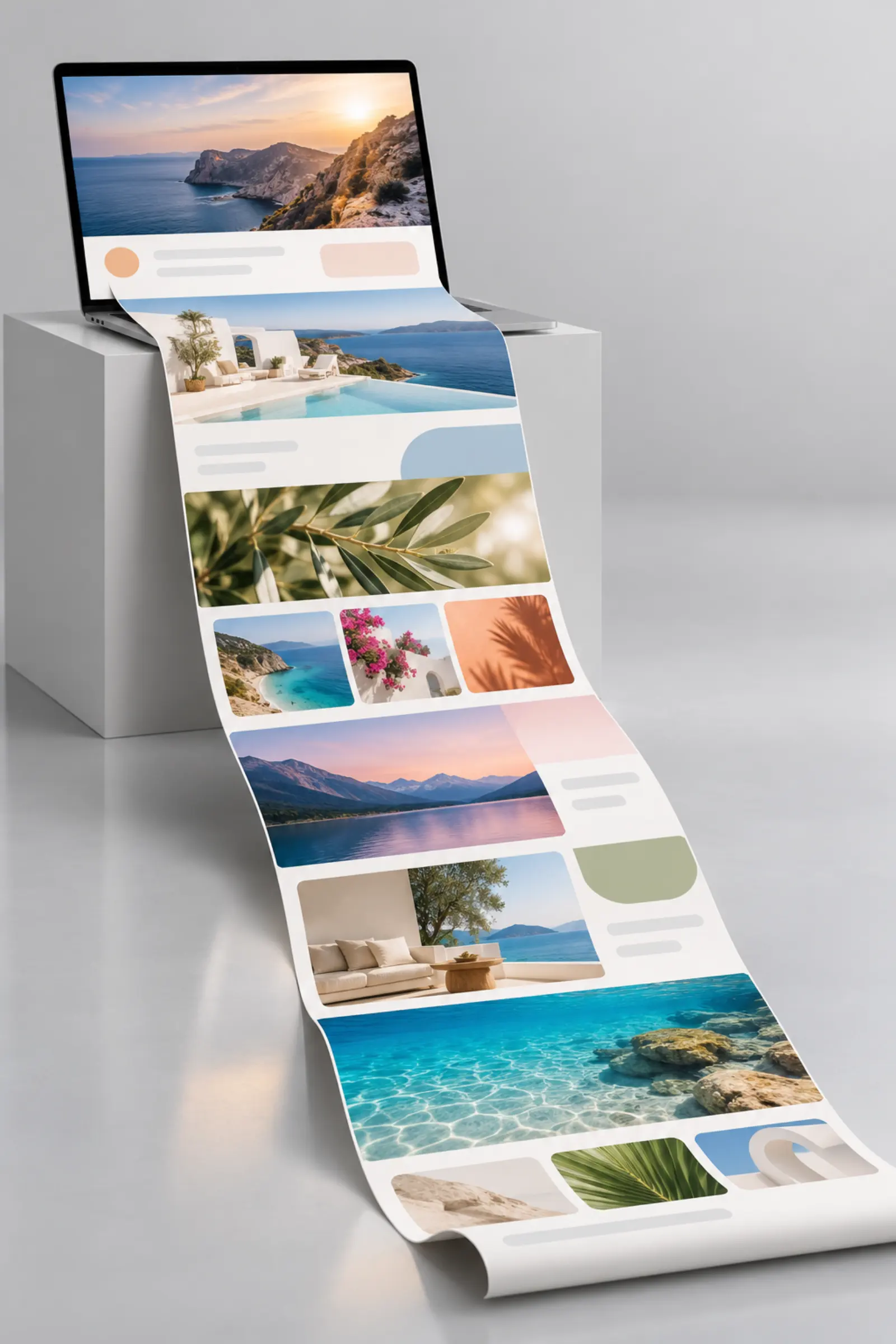


Screenshot translation
Capture a foreign-language screen, and the translation is written back in place.
Learn about screenshot translation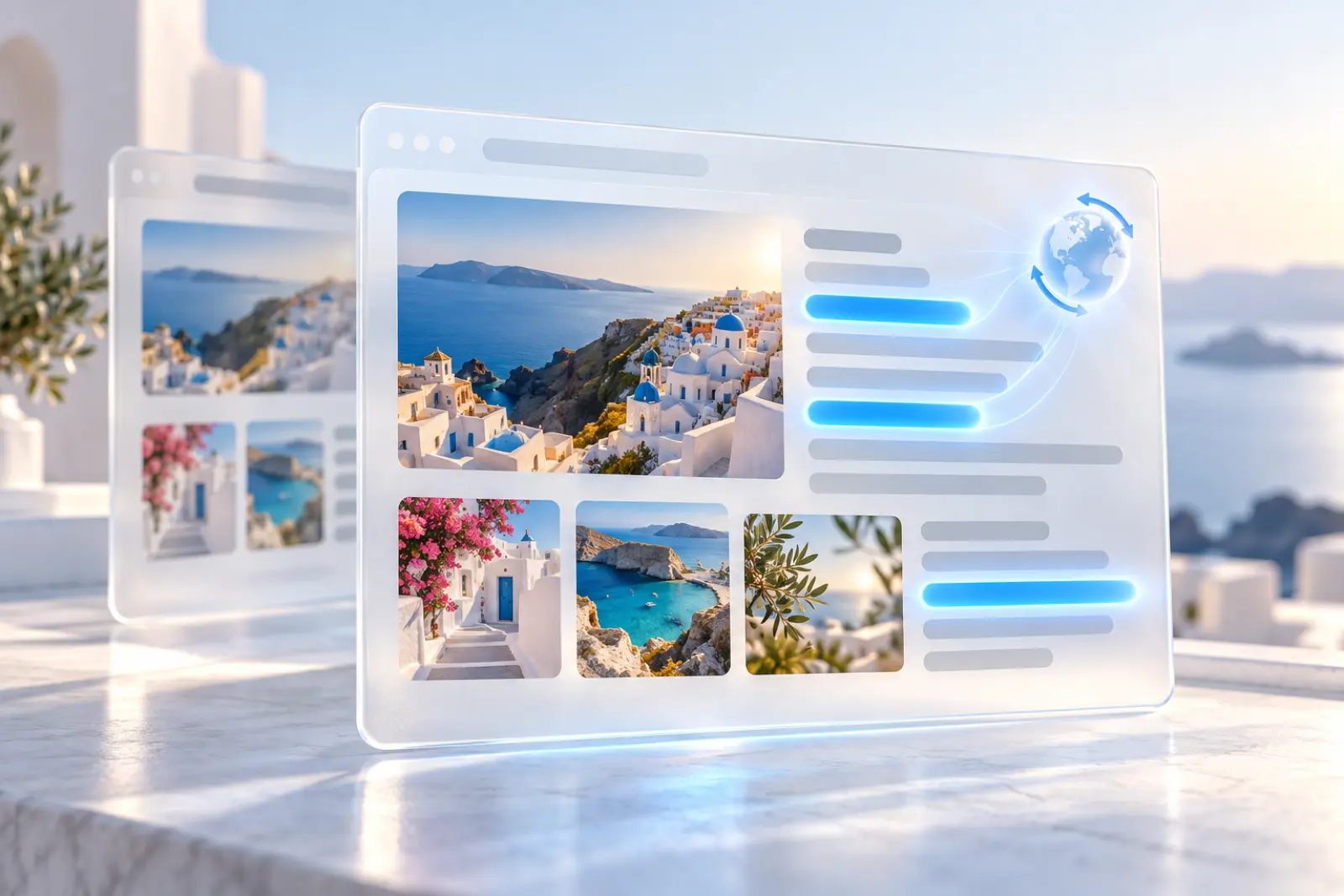
Shortcuts
Press a shortcut. Capture anytime.
The default is ⌥⇧A (Option+Shift+A) on Mac and Alt+Shift+A on Windows. Full-screen, window and delayed capture can be customized in Settings → Shortcuts. MiniPic doesn’t take over the system screenshot shortcuts, so it won’t conflict with the screenshot tool built into macOS.
Mac
Windows
How it works
Capture and annotate in three steps.
Press the shortcut and select an area
Press ⌥⇧A on Mac or Alt+Shift+A on Windows and drag out the area to capture; you can also switch to window or full screen.
Annotate from the toolbar
Choose rectangle, arrow, text, number or mosaic to frame, redact and add notes.
Copy or save
Click “Done” to copy to the clipboard, or “Save” to export a PNG or JPEG, compressed by default.
Price
Free. No sign-in.
Screenshots, annotation, pinning and scrolling screenshots are all free, and screenshots carry no watermark. Works on Mac and Windows.
¥0
System requirements
Works on Mac and Windows.
Mac
macOS 13 or later, with installers for both Apple silicon and Intel. The first time you use it, you’ll need to grant the “Screen Recording” permission.
Windows
Windows 10 / 11 64-bit.
FAQ
Is MiniPic Screenshot free?
Yes. Screenshots, annotation, pinning and scrolling screenshots are all free, with no sign-in required, on both Mac and Windows.
What’s the screenshot shortcut?
The default is ⌥⇧A (Option+Shift+A) on Mac and Alt+Shift+A on Windows.
How do I paste a screenshot into WeChat or a document?
When you finish a screenshot, it’s copied to the clipboard automatically, so you can paste it straight into a chat or document.
Are screenshots compressed automatically?
Yes, when you save them. Saved screenshots are compressed by MiniPic’s in-house engine by default, as PNG or JPEG, and you can turn this off in the save panel. What’s copied to the clipboard is the original, uncompressed.
How do I add a mosaic to a screenshot?
Choose “Mosaic” in the annotation tools and brush over the area you want to hide; hold Shift and drag to select a box.
How do I pin a screenshot on my screen?
Use “Pin”. The screenshot floats on top of other windows, and you can resize it.
Related features

Screen recorder
Record to MP4, or straight to a smaller GIF.

Image viewer
Double-click to view, and compress in one click while you’re there.

Color picker
Press a shortcut, click anywhere, and copy that color.
Remove background
Remove backgrounds on your Mac and export a transparent PNG. Images aren’t uploaded.